
Choose the link that answers the customer's question
An order status link leads to the Shopify page for the customer's order. A carrier tracking link leads to the carrier's page for a shipment. Decide which destination your message needs, and label it clearly.
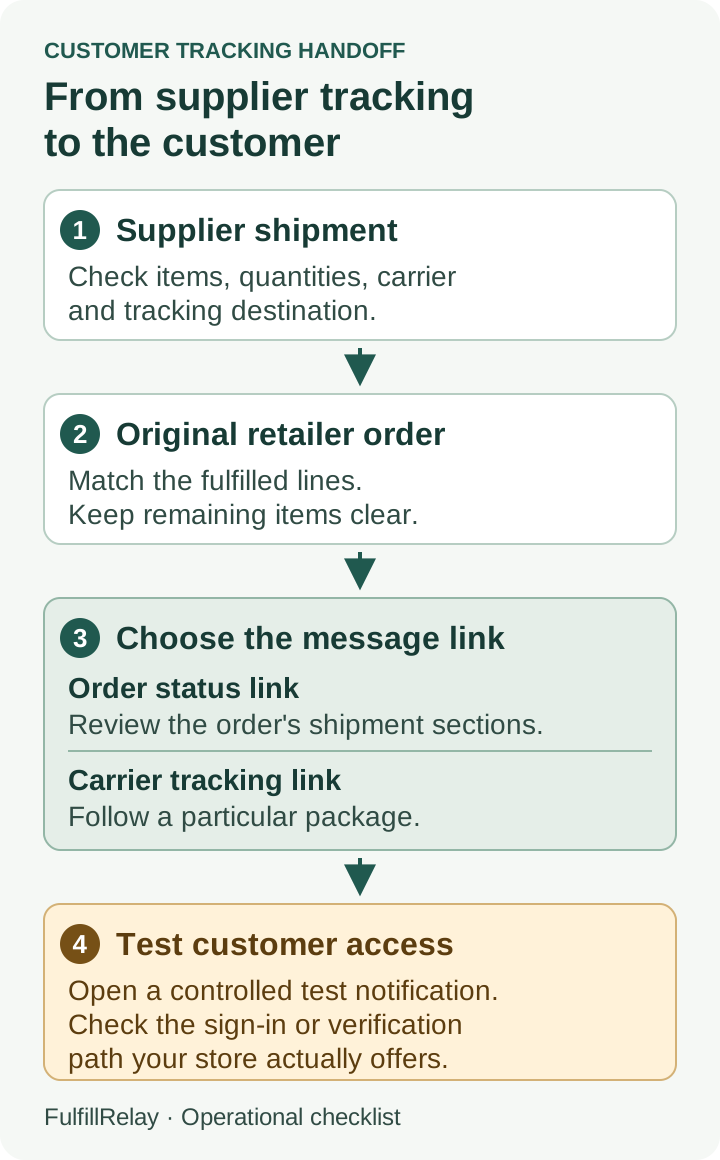
Use the order status page when the customer needs to review the order's shipment sections. Use a carrier link when your explanation concerns a particular package. Shopify can show real-time shipment information for supported carriers; for an unsupported carrier, the order status page links to the carrier's website instead. [1]
Avoid treating every tracking link as a complete view of the order. In a mixed-supplier order, one package's progress may answer only part of the customer's question. If the customer asks about everything they bought, identify which items the link covers and explain the next step for the remaining items.
Check what reached the original retailer order
FulfillRelay connects a supplier's fulfillment to the retailer's original order through the routed order lines. Its tracking guide recommends checking partial shipments by line and quantity. [6] Before investigating an email, confirm that the retailer order contains the shipment you expect the customer to see.
Compare the supplier record with the original order:
- The exact item and fulfilled quantity
- The shipment's tracking number and carrier
- The destination opened by the tracking link
- Any items still awaiting fulfillment
Shopify may identify a carrier from a tracking number, but its fulfillment instructions also allow you to correct the selected carrier. If the carrier is not fully supported, a complete carrier tracking URL can be entered manually. [3] Ask the person responsible for the fulfillment record to correct an inaccurate carrier or destination, then check the customer view again.
Keep a shipment-data problem separate from a notification problem. A well-written email cannot display tracking that is missing or matched to the wrong shipment.
Review all three customer email templates
Check the Order confirmation, Shipping confirmation and Shipping update templates. Shopify's default templates include the order status link. Customized templates need their own check to ensure that the intended link remains present. [2]
Check the checkout contact channel first. Shopify sends an order confirmation by SMS for a phone-number checkout, but later order and shipping updates are not sent by SMS. [1] Confirm the customer's email-update route before treating a missing email as a broken template.
In Shopify's manual fulfillment flow, sending a customer notification is optional and requires the customer's email. When adding tracking later, the shipping-update notification can also be deselected. [3] Check the actual fulfillment or update flow's notification choice before rewriting a template. For an app-managed flow, confirm its current notification behavior rather than assuming that it follows the manual control.
For each template, inspect the visible wording and the actual destination. A button that says “View your order” should lead to the intended order page. A package-specific button should make clear which shipment it tracks. Check the mobile email as well, especially when several shipment links appear together.
Shopify documents the order_status_url Liquid variable for adding the order status link to custom templates. Keep the variable intact if your developer uses that method. A default reset replaces the template content. Save a copy before making changes, and compare the resulting link and wording before saving the replacement. [2, 5]
Previewing a template and sending a test email help check its appearance. Shopify sends that template test email to the account used to sign in to the admin. [5] Then use a controlled test order to check the real order-specific link and shipment information, as Shopify recommends for order status updates. [2]
Test access from the customer's side
An admin view is not the same test as opening the customer's notification. Shopify notes that even a merchant viewing an order status page from the admin sees limited details because of customer access requirements. [1]
Use an order you control, with your own test contact details. Open the delivered notification on a phone and in a separate browser. Confirm that it leads to the expected order, that the intended shipment can be found, and that any sign-in or verification instructions are understandable.
The available recovery route depends on the customer account setup. Shopify's customization documentation describes sign-in or a new link sent to the checkout email or phone number for newer accounts; legacy accounts or stores with sign-in links turned off use the new-link route. An app block can also require authentication. [4] Test the configuration your store actually uses before writing customer instructions.
If a customer reports a restricted view, guide them through the access option shown on your store's page. Do not promise that creating an account is always necessary, or that a forwarded link will show every detail. Shopify's limited view can still include purchase information such as items and the order total. [1] Keep real customer links out of public troubleshooting posts and screenshots.
Run a short tracking handoff test
Keep these checks with the person who owns customer notifications. Repeat them after changing a notification template, a tracking app, a carrier setup or an order status page block.
- Follow one controlled supplier shipment to its original retailer order. Confirm the item, quantity and tracking destination.
- Open the actual customer notification. Check the link label and the order or package it opens.
- Test a partial shipment. Confirm that the customer can distinguish the shipped items from the remaining items.
- Check the access and recovery path in the store's current customer account configuration.
- Record any failed step, its owner and the next check time. Retest that step after the correction.
The result should be a customer message you can verify: the right items, the right shipment link and a usable path to the order information. If the carrier page itself shows only a label record, continue with the label-created shipment checklist before making a delivery promise.
Sources
Sources checked October 11, 2026. Shopify Help Center pages are maintained documentation. Customer access, carrier support and notification behavior should be tested against the store's current configuration.
- Shopify: Understanding order status pagesShopify · Checked
- Shopify: Setting up order status updatesShopify · Checked
- Shopify: Fulfilling your own orders individuallyShopify · Checked
- Shopify: Customization options for Thank you and Order status pagesShopify · Checked
- Shopify: Customizing email notification templatesShopify · Checked
- FulfillRelay: Sync supplier tracking back to Shopify ordersBoreal Meridian Commerce Inc. · Checked