
1. Give every date a specific meaning
Ask the supplier what its quoted date actually describes. It could mean production completion, arrival at its warehouse, completion of receiving checks, or readiness for carrier collection. Record the milestone and the quantity it covers, together with when the supplier last confirmed it.
Then write down three separate points:
- Supplier readiness: when the exact variant and quantity will be available to pick at the shipping location
- Dispatch plan: when the supplier expects to pack and hand that shipment to a carrier
- Customer promise: the shipment window communicated for that item, with any delivery estimate recorded separately
Shopify describes fulfillment time as the period from the customer's order to carrier handoff. Review, packing, label preparation and handoff all contribute to it. Leave room for those steps when translating a supplier update into a customer-facing estimate. [6]
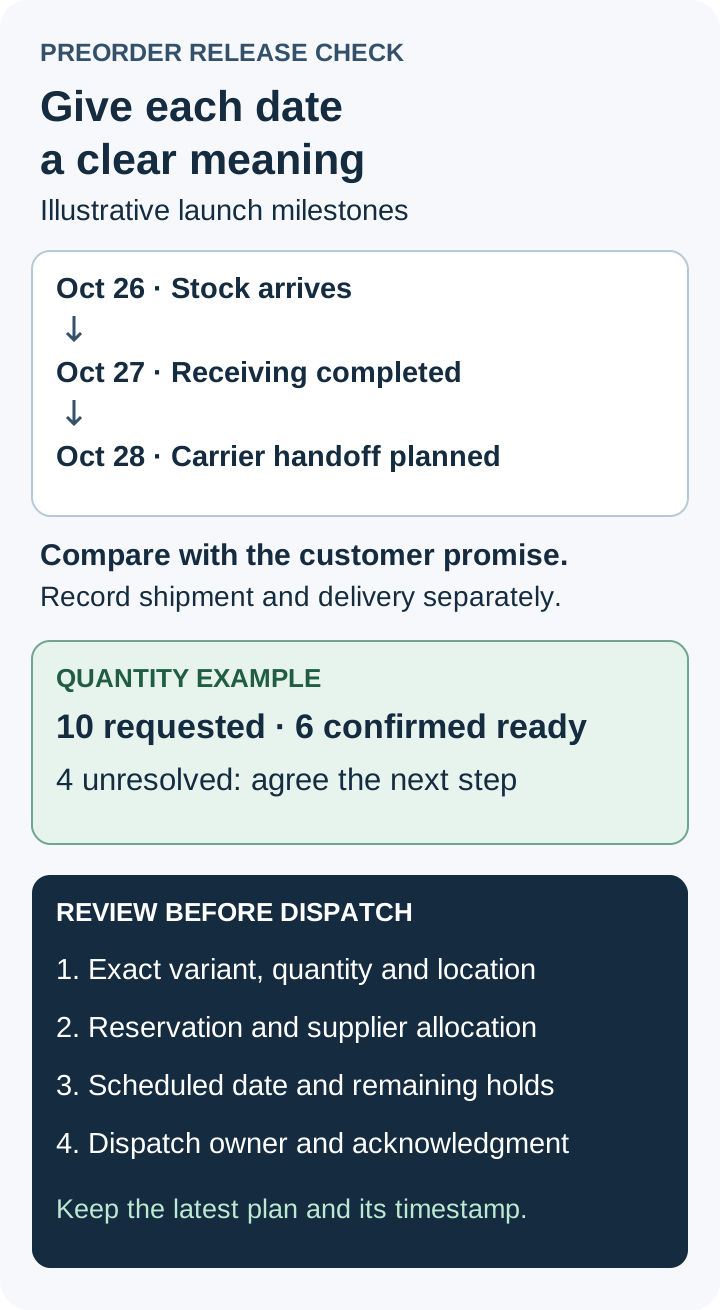
For an illustrative launch, a supplier might expect stock to arrive on October 26, finish receiving on October 27 and hand parcels to a carrier on October 28. Those are three milestones. Confirm which one supports the promised shipment window, and keep the supplier's next update time on the record. These dates are an example, not a shipping forecast.
2. Confirm what inventory is actually reserved
Shopify says preorder inventory can be reserved at the time of sale or fulfillment. Some preorder apps let you choose; when that setting isn't available, Shopify directs merchants to the app developer. Read the actual configuration before treating an accepted preorder as a reservation. [3]
For an independent supplier relationship, ask a second question: what has the supplier allocated to your order? Keep its answer beside the retailer's reservation setting. Check the exact variant, quantity and shipping location rather than relying on a product-level restock message.
Suppose ten units were ordered, but the supplier confirms only six ready for this release. Write six as confirmed and four as unresolved. Decide what happens to the remaining four before dispatch instructions go out. That decision needs the actual fulfillment setup, the customer's shipment expectation and a clear supplier acknowledgment.
Use the supplier SKU routing guide when checking exact variant identity. Keep purchase-option details alongside that identity so the team can tell a preorder line from a one-time purchase of the same product.
3. Read the fulfillment state before the release date
Check whether the relevant fulfillment is scheduled, on hold or ready for the next step. Shopify's individual-fulfillment documentation says future-scheduled fulfillments can't have their status changed. For early fulfillment, it directs merchants to change the fulfillment date on the order details page. Holds also need to be resolved before the affected fulfillment can be marked fulfilled or in progress. [5]
Shopify documents an unknown-delivery-date system hold for selling plans requiring future fulfillment at an unscheduled date, commonly preorders. Multiple holds can coexist. Check the reason and owner of each remaining hold; Shopify cautions merchants to review the agreement or contact the service before overriding a system hold. [4]
Put the supplier's dispatch acknowledgment beside those checks. If the supplier has already received an instruction, establish whether its own work is waiting or underway. Record who will send the final release instruction and which exact units it covers. A reminder in your calendar should prompt this review.
4. Check mixed carts line by line
For a cart containing an available item and a preorder, inspect the actual fulfillment groups. Shopify can split items that can't ship together, including preorder items, into separate fulfillments. Its manual workflow also supports fulfilling selected quantities from a fulfillment when only part is ready. Manual partial fulfillment requires automatic order fulfillment to be deactivated; a third-party fulfillment service controls the status of fulfillments assigned to it. [5]
Confirm the supplier sees the intended item quantities and timing. For example, a ready accessory might ship now while the main product waits. Write down whether that is the agreed plan, which supplier owns each shipment and what the customer will be told about the remaining item.
After shipping, reconcile each dispatched quantity with what remains open. The missing-item and split-shipment checklist can help separate a later parcel from a genuine packing shortage.
5. Recheck the release record when plans change
Shopify lets merchants put an unfulfilled preorder on hold when it isn't ready and says customers should be informed of its status. Its preorder guidance also calls for a reasonable basis for shipment promises and an updated shipment date and cancellation/refund information when the promised time can't be met. Review the platform requirements and the rules that apply to your business and customers. [2][3]
Before a launch, walk through five cases with the supplier:
- All ordered units are ready on the expected date
- Only some units are allocated at the shipping location
- An available item shares a cart with a later preorder
- Stock arrives early while fulfillment is still scheduled or held
- The supplier moves its dispatch estimate beyond the customer's shipment window
For each case, identify the affected lines, the person responsible for the next decision, the supplier instruction and the customer update. Keep the latest confirmed plan with its timestamp. That gives the next person handling the order enough context to act without rebuilding the conversation.
Sources
Shopify documentation checked October 15, 2026. Supplier records and launch dates above are suggested checks and illustrative examples.
- Shopify Help Center: Pre-ordersShopify · Checked
- Shopify Help Center: Setting up pre-ordersShopify · Checked
- Shopify Help Center: Managing pre-ordersShopify · Checked
- Shopify Help Center: Marking your order as on holdShopify · Checked
- Shopify Help Center: Fulfilling your own orders individuallyShopify · Checked
- Shopify Help Center: Understanding fulfillment timeShopify · Checked