
Check the action's scope before choosing orders
Shopify's Purchase shipping label documentation defines the action at fulfillment level: one purchase buys one label for one fulfillment order. It supports fulfillments handled directly through Shopify. The action does not run for an order assigned to a third-party fulfillment service, even when a fulfillment order exists.
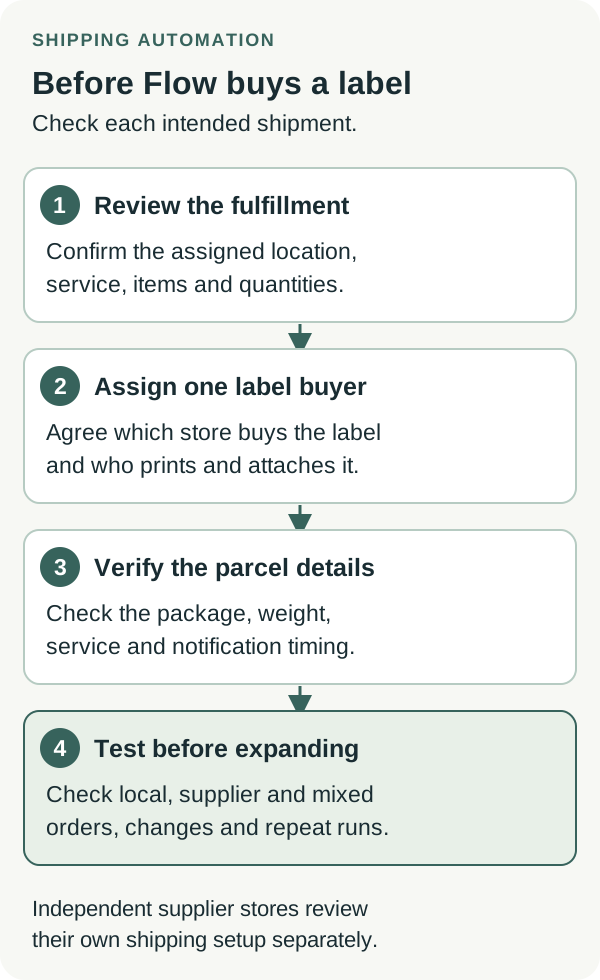
Inspect the assigned location and fulfillment service in the actual store. An independent supplier operating its own Shopify store is a business relationship; a third-party fulfillment-service assignment is a specific platform configuration. Establish which arrangement applies instead of treating those descriptions as interchangeable.
For a supplier-owned shipment, agree where the label purchase belongs. Keep it out of a retailer label workflow unless that responsibility and the actual configuration have been verified. The supplier should review any automation it plans to use in its own store separately.
Give every parcel one label buyer
Before building the rule, write a short shipping record for each recurring fulfillment arrangement:
- The store and location responsible for packing
- The exact items and quantities that location will ship
- The person or team buying the label
- The carrier account or purchasing workflow it will use
- The person printing and attaching the label
- The owner of any label correction or unused-label review
Consider an illustrative order containing a cardigan from the retailer's stock and a planter shipped by an independent supplier. The retailer's label should cover its cardigan parcel. The supplier's planter needs its own agreed shipping instruction. Check both records before accepting a result simply because the customer order has tracking.
In FulfillRelay's supplier workflow, the connected supplier accepts and fulfills the routed order in its own Shopify store, and tracking returns to the original retailer order. Keep the label-buying decision with the agreed shipping team while following that handoff.
Make the rule specific to the fulfillment
Shopify's announcement describes conditions based on tags, products and other order attributes. Use these to define a narrow starting group, then check whether the conditions distinguish the actual fulfillment that may receive a label.
An order-wide tag can describe a mixed order without proving that every shipment belongs to your packing team. Review the assigned location or service before the purchase step. Test the same product in a local-only cart and a mixed cart so an apparently successful simple order does not conceal a broader selection problem.
Review the trigger as carefully as the conditions. Shopify's Fulfillment order ready to fulfill trigger operates for individual fulfillment orders and can also run after a hold is released. It does not start workflows for fulfillment orders created by editing an order. Plan a separate review for that documented gap, and check what happens if an existing fulfillment encounters the workflow again.
Verify the package, service and customer message
Use a packed example of the product group you intend to automate. Measure the parcel and confirm the item quantity, packaging and total weight. Shopify's packaging guidance calls for accurate product weights and package dimensions, including outside box measurements. A saved package should represent what the packing team will use.
Check a two-unit purchase separately from a one-unit purchase. If the second unit requires a different box or service, keep that case outside the initial rule until the shipping configuration has been reviewed.
The Flow action includes a shipping-confirmation timing field. Review it alongside the team's packing and collection schedule. Shopify's individual fulfillment guidance says buying and printing a Shopify shipping label marks the order fulfilled in the admin. Check the resulting fulfillment record and customer message without treating label preparation as confirmation of physical carrier handover.
Test the cases that should pass and those that should stop
Begin with Flow's workflow test mode. Shopify says it makes no live changes and stops at the first action that would change the store. Use it to check the logic before separately arranging an end-to-end test. A logic-only result does not confirm label purchasing, printing or customer emails. Obtain authorization for any live purchases and use an email address your team can inspect.
Write the expected result before each case:
- Local-only shipment: the intended fulfillment qualifies, with the correct items, package, service and purchasing store.
- Supplier-only shipment: the retailer's local-label rule does not purchase a label for work assigned to the supplier.
- Mixed order: only the intended local fulfillment qualifies; the supplier's items remain with its agreed shipping process.
- Changed quantity or package: an order outside the starting specification is excluded or sent for review.
- Edited order or returning fulfillment: the team can identify any missed processing or existing label before authorizing another purchase.
For each controlled live run, compare the workflow history, fulfillment reference, purchased label and customer notification. Record whether it matched the expected result and who will resolve a discrepancy. For service-assigned orders, confirm the documented exclusion rather than assuming a successful workflow run means a label was purchased.
Expand only after the records agree
Keep the first live group small enough to reconcile each label with the parcel it serves. Review purchases in both stores with the supplier, including any label created through another tool or a manual process. Confirm which label is active before printing or replacing it.
If a run fails or its result is unclear, inspect the existing fulfillment and shipping-label records before retrying. An error message alone is insufficient evidence that no purchase occurred. Assign the investigation and record the next action so another team member does not make a second purchase while it is open.
Expand to another product group or supplier arrangement after repeating the relevant checks. A useful rollout record connects each parcel to its shipping owner, intended service, active label and customer update. That gives both teams a practical basis for deciding which purchases are ready to automate.
Sources
- Buy shipping labels automatically with Shopify FlowShopify Changelog · Checked
- Purchase shipping labelShopify Help Center · Checked
- Fulfillment order ready to fulfillShopify Help Center · Checked
- Understanding shipment packaging and weightsShopify Help Center · Checked
- Fulfilling your own orders individuallyShopify Help Center · Checked
- Testing a workflow in Shopify FlowShopify Help Center · Checked
- Sync supplier tracking back to Shopify ordersFulfillRelay · Checked